
Guides → PC settings & performance
The Sinking City 2 PC settings and performance guide
This guide is for Windows PC builds only. It turns Frogwares' current support advice into a repeatable troubleshooting path; it does not mix in console or handheld performance profiles.
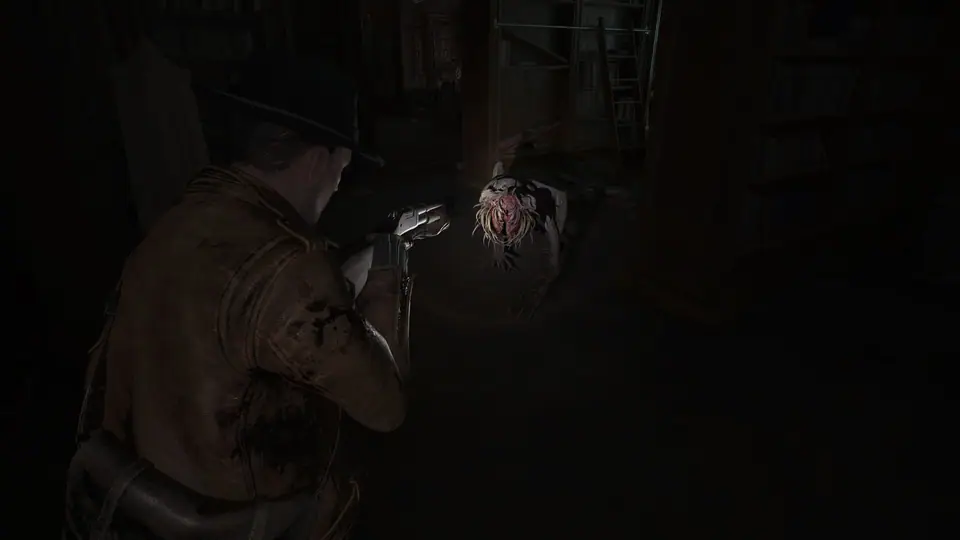
Use a safe test loop first
- Change settings from the title screen. Frogwares warns that changing presets or individual options during gameplay can cause visual bugs.
- Record your baseline: note the scene, resolution, preset, upscaler, Frame Generation and the symptom you see.
- Change one setting at a time, then repeat the same scene instead of changing several variables together.
- If a settings change produces glitches, restore the previous value and restart the game or reload a save.
Choose the symptom you actually see
There is no universal “best” preset. Start with the branch matching your problem, keep the same repeatable scene, and stop when the symptom is acceptable. Do not apply every change at once.
Low FPS
- If you are playing at a high resolution, follow Frogwares' first step and test 4K/2K to 1920×1080 or lower. Keep the preset and upscaler unchanged for this pass.
- Restore the original resolution, then lower the graphics preset by one step and repeat the same scene. Frogwares says to avoid the Low preset unless it is necessary: it is intended for NVIDIA 1000-series-class hardware and AMD equivalents, but can produce visual artifacts.
- Test the available upscaler separately. With NVIDIA DLSS, stay at Balanced and above while the lower modes remain on the official Known Issues list.
- Frame Generation is a separate experiment, not a guaranteed FPS fix. DLSS Frame Generation requires an RTX 40/50 Series GPU and Windows Hardware-Accelerated GPU Scheduling. Restart Windows after enabling that scheduling option.
- If Frame Generation makes performance worse on a 60 Hz monitor, Frogwares says to test with V-Sync off. Change only V-Sync for that pass.
PC Major Update 1.1.0 (October 6, 2026) added AMD FSR 4.1.1 to the Video settings, and a Legacy mode for NVIDIA DLSS. The official notes do not state a console version.
Stutter or slow environment loading
- After loading a level, pause before judging the result. Frogwares says props and environment assets can take a moment to finish loading, depending on the PC.
- If the hitch repeats in the same route, test resolution first, then a one-step preset reduction in a separate run. Record which change affects the hitch rather than keeping both automatically.
- Check the current patch notes before treating an old benchmark or forum profile as a diagnosis. Missing DLSS option: If the DLSS option itself is missing, follow Frogwares' clean driver-reinstall path; that step is not presented as a universal stutter fix.
- If it remains repeatable, restore your baseline and report the scene with reproduction steps, a DxDiag and a screenshot or video. Crash reports: Only include the local TSC2 files for a crash report when Frogwares Support requests them.
Blur, ghosting or unstable edges
- Return to the title screen. Frogwares says DLSS Performance and Ultra Performance modes are highly unstable and can cause ghosting and other artifacts.
- Test DLSS Balanced, then Quality, one at a time. “Balanced and above” is the developer's current recommendation; it is not a promise that one mode will look best on every monitor.
- If hardware headroom allows, compare the same scene with the upscaler disabled. Keep that result only if both image stability and performance are acceptable.
Visual artifacts or LOD pop-in
- Revert the most recent change from the title screen, then restart the game or reload a save. This is Frogwares' stated recovery step for glitches after midgame setting changes.
- If you are on Low, test the next preset up. If you are using DLSS Performance or Ultra Performance, test Balanced or Quality.
- LOD issues can remain hardware-dependent and are still listed as a known issue. If the same object pops at the same point after rollback, capture the location and report it instead of presenting an unverified config tweak as a fix.
Use the right page for the next question
Can this PC meet the target?
That is a hardware eligibility question. Compare CPU, GPU, RAM, OS and storage before tuning individual options.
Check system requirements →Should I install a config mod?
The mods guide covers third-party files, backups and rollback. Mods are not a clean baseline for diagnosing the official build.
Read the safe mods guide →Was this problem patched?
Use the release tracker for confirmed fixes and update history. A known bug should not be disguised as a universal settings fix.
Check patch notes →PC settings FAQ
What are the best PC settings for The Sinking City 2?
There is no single best profile for every PC. Change settings from the title screen, record a repeatable baseline and change one variable at a time. For low FPS, Frogwares starts with resolution, lower video settings and available upscaling options.
How do I fix low FPS?
First test 1920×1080 or lower without changing another option. Then restore resolution and test a one-step preset reduction. Test upscaling and Frame Generation separately; Frame Generation requires compatible hardware and can need different V-Sync behavior on a 60 Hz display.
Why does the game look blurry or show ghosting?
DLSS Performance and Ultra Performance are on Frogwares' Known Issues list for instability, ghosting and other artifacts. Test Balanced and Quality separately from the title screen, and keep the option that gives acceptable image stability and performance on your PC.
Can settings completely remove LOD pop-in?
Not necessarily. Frogwares lists LOD issues as hardware-dependent. Roll back recent changes, avoid the known unstable combinations and report a repeatable location if the same pop-in remains.
Does the released game support AMD FSR?
Yes on PC as of Major Update 1.1.0 (October 6, 2026). The official notes add AMD FSR 4.1.1 to the Video settings. They do not state a console version.
Sources: Frogwares Support — Technical Questions, Frogwares Support — Known Issues, the pinned Team Frogwares Steam FAQ, and the official demo FAQ for the demo-only FSR comparison. FSR status checked against the October 6, 2026 Major Update 1.1.0 notes. Checked October 7, 2026.